
Features
InspireFace separates the common detection and tracking work from optional models. Start with a session that finds faces, then enable recognition, quality or other analysis only when you use those results.
This page maps each feature to the data it returns. Feature guides provide C API, C++, Java, Android, HarmonyOS, Python, Objective-C and Swift tabs where the wrapper supports the operation. Use the API index to find a workflow, or copy a program from Complete examples.
Face Tracking
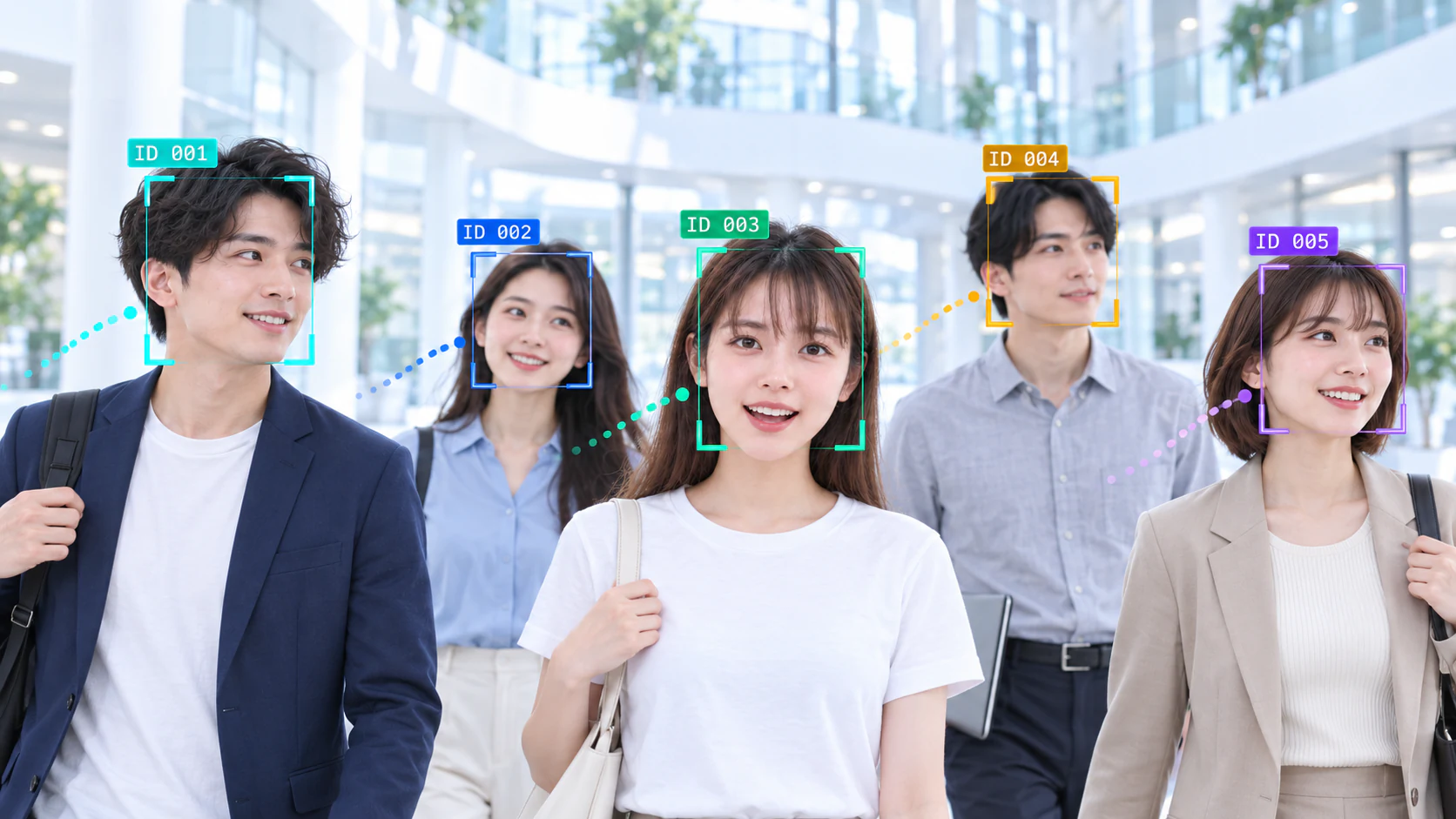
Use detection for unrelated photographs and tracking for a sequence of frames from the same camera. A tracking session keeps history, so reuse it for the sequence and feed frames in order. A new camera or a large discontinuity should start a new tracking history.
Each result includes a box, detection confidence, track ID and track count. Use the track ID to keep an overlay or application state attached to the same face within a video sequence. Use recognition when the application needs to identify someone across sessions.
| Mode | Typical input | What changes |
|---|---|---|
| Always detect | Photographs or unrelated frames | Runs detection on each call. |
| Light track | Continuous camera video | Uses temporal tracking between detector passes. |
| Track by detection | Video with detector-based association | Runs detection on every frame, then associates detections into tracks. |
The detector's input level controls the work done on each detection pass; it is independent of the camera resolution. The tracking guide explains detector levels, minimum face size and smoothing.
Face Embedding
An embedding is a numeric representation extracted from a detected face. It is the input to face comparison and gallery search. The workflow detects the face, aligns it, then extracts the vector used for comparison.
Enable HF_ENABLE_FACE_RECOGNITION when creating the session, then extract an embedding from the same image and face result. Keep the source pixels available until extraction finishes.
# session has HF_ENABLE_FACE_RECOGNITION enabled; image is a BGR array.
faces = session.face_detection(image)
if len(faces) == 1:
    embedding = session.face_feature_extract(image, faces[0])
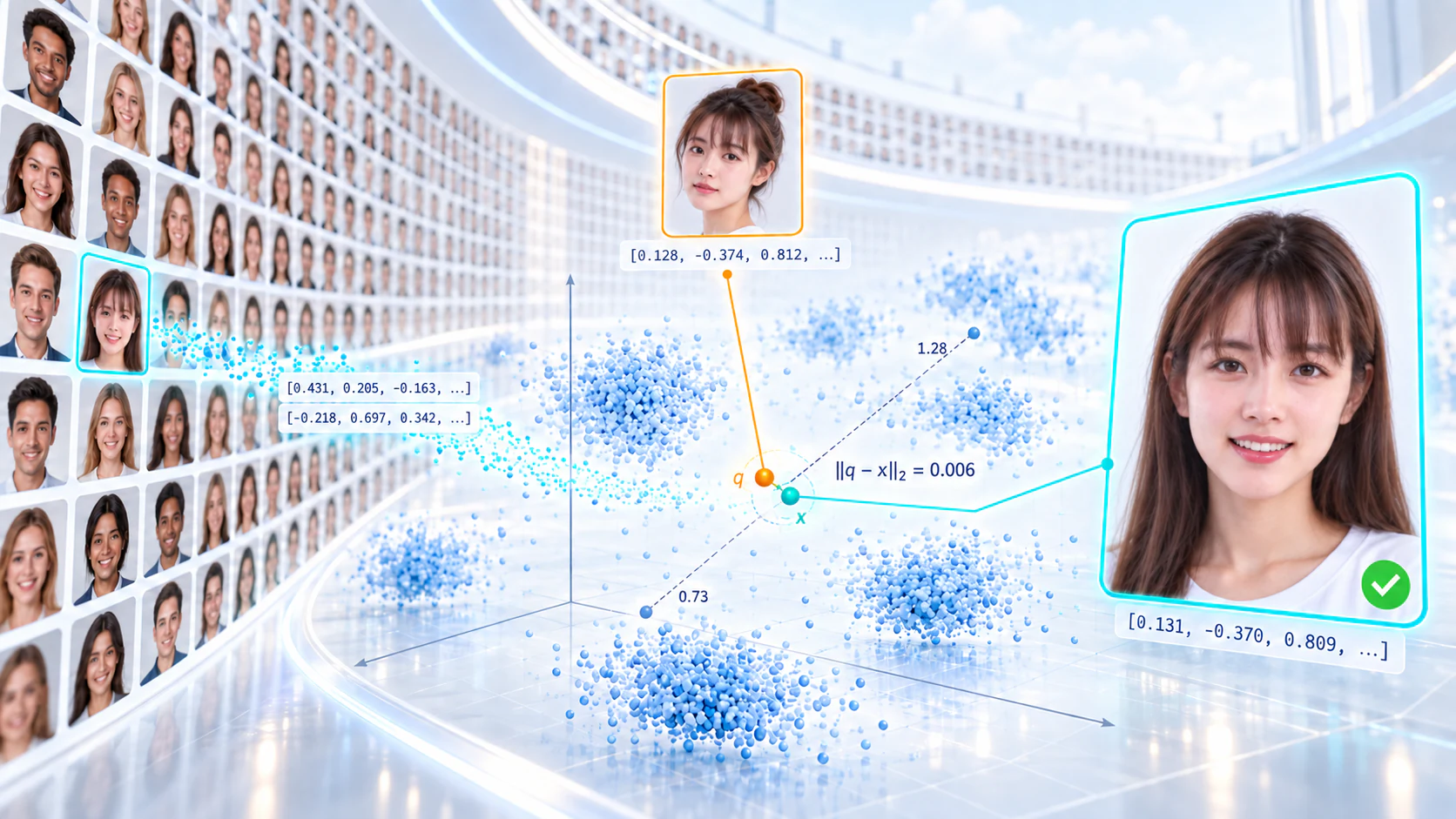
Use one recognition model for a gallery. When switching models, re-extract the enrollment images and rebuild the gallery with the new vectors.
Face Attribute Analysis
Optional models return mask scores, attribute categories and expression categories for each face. Read the score or category index, then map it to the labels used by the application. Clear, well-oriented face images give these models more usable input.
| Output | Session option | Result |
|---|---|---|
| Mask | HF_ENABLE_MASK_DETECT | Mask confidence |
| Attributes | HF_ENABLE_FACE_ATTRIBUTE | Age bracket and model category indices |
| Expression | HF_ENABLE_FACE_EMOTION | Expression category index |
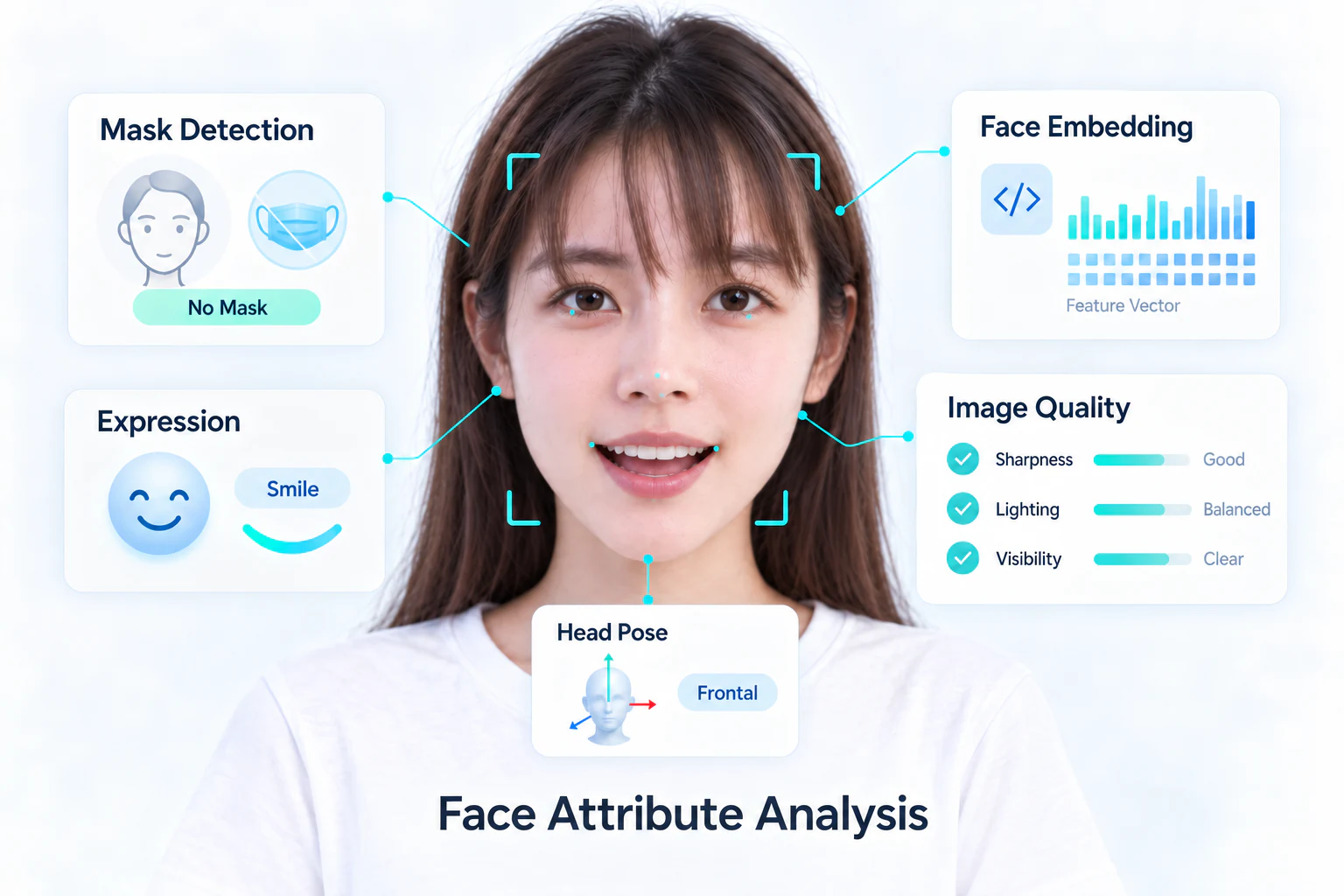
Call the face pipeline after detection. The requested pipeline options must also have been enabled when the session was created. The analysis guide shows how to read the outputs in each API, with the matching Android package setup. The Python reference includes the label order.
Face Recognition
For one-to-one verification, compare two embeddings. For one-to-many identification, search a gallery. Both return a similarity score; your application decides which threshold and handling of uncertain matches fit the input conditions.
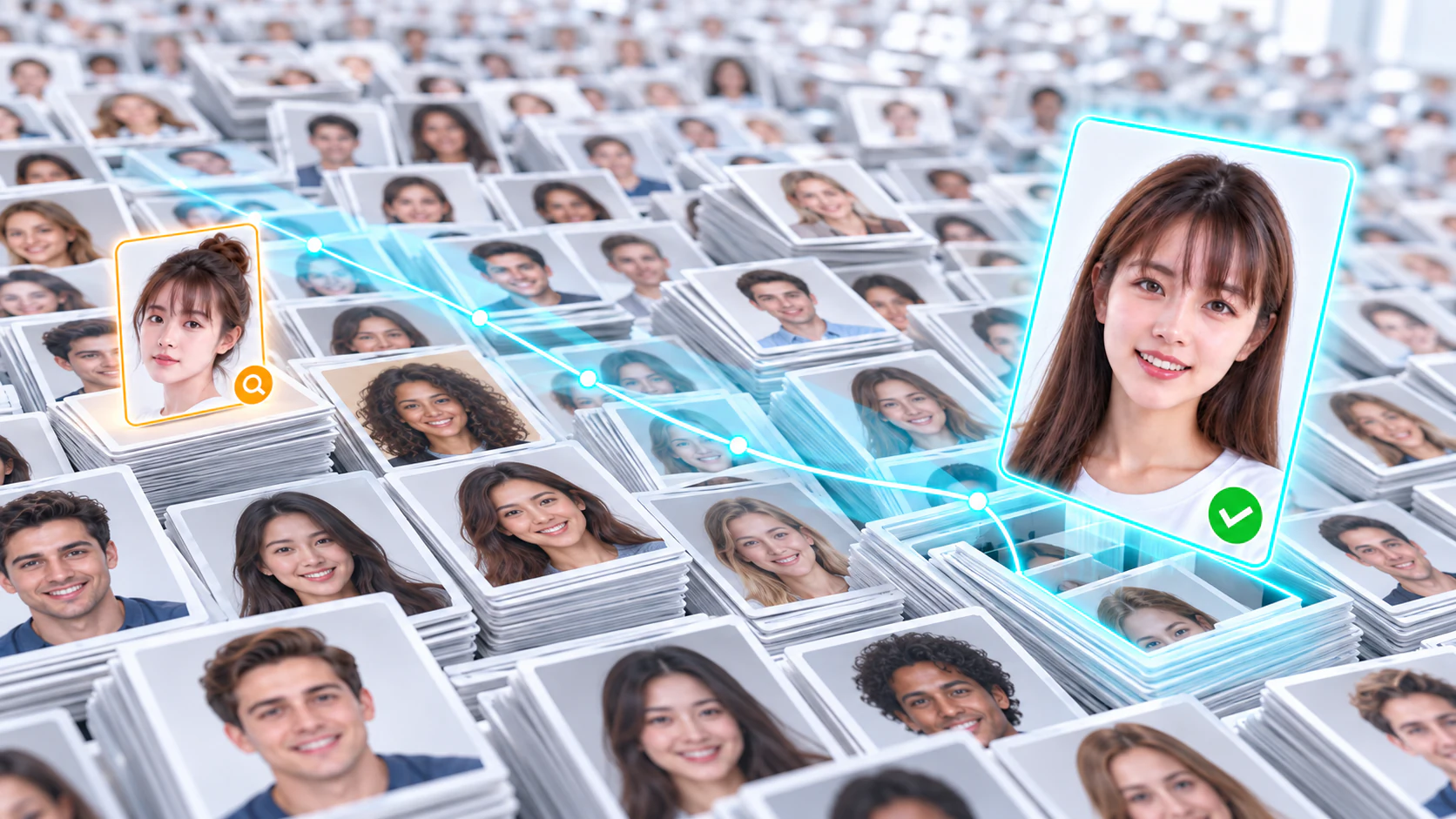
Start with the model’s recommended cosine threshold, then evaluate it on matched and unmatched pairs from your cameras. Compare the raw cosine score with that threshold; percentage conversion is for display.
For enrollment, select the intended face and check that the image is usable. For group photographs, let the user choose a face before extracting its embedding. See recognition and FeatureHub for a complete comparison example and gallery lifecycle.
Face Quality Assessment
Quality assessment helps decide whether a face image is suitable for downstream processing. It is useful when choosing an enrollment image or waiting for a better camera frame. Enable HF_ENABLE_QUALITY, run the pipeline, and read the quality score for each face.
See the analysis examples for quality, mask, attributes and pose together.
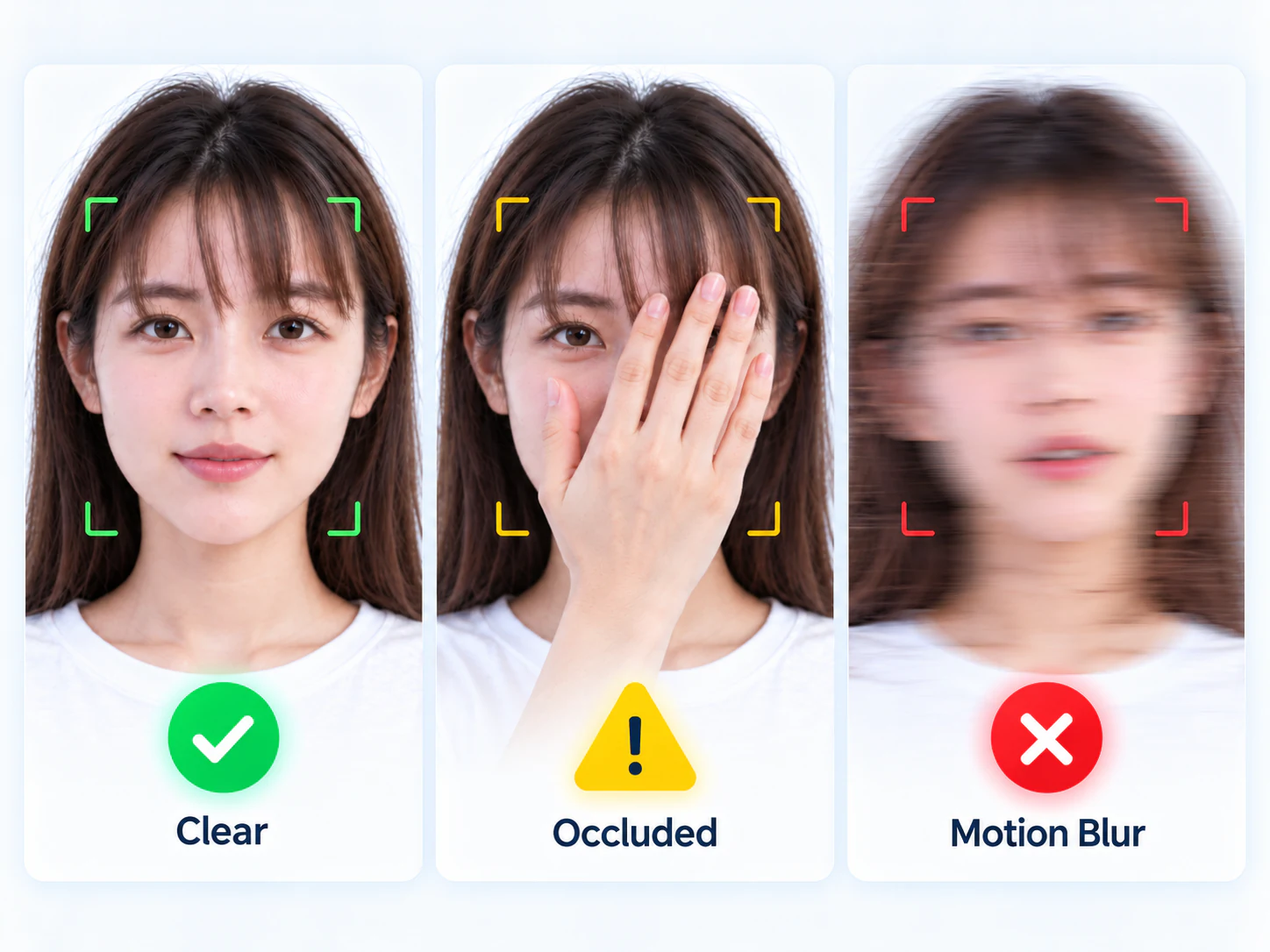
For capture, combine the quality score with sharpness, brightness, pose, face size, guide position and face count. The face-capture module combines these checks over time and selects candidates.
Face Landmark
Landmarks describe facial geometry. The SDK exposes five alignment points and a dense set of points through the detected face result. Typical uses include alignment, drawing an overlay and measuring motion between frames.
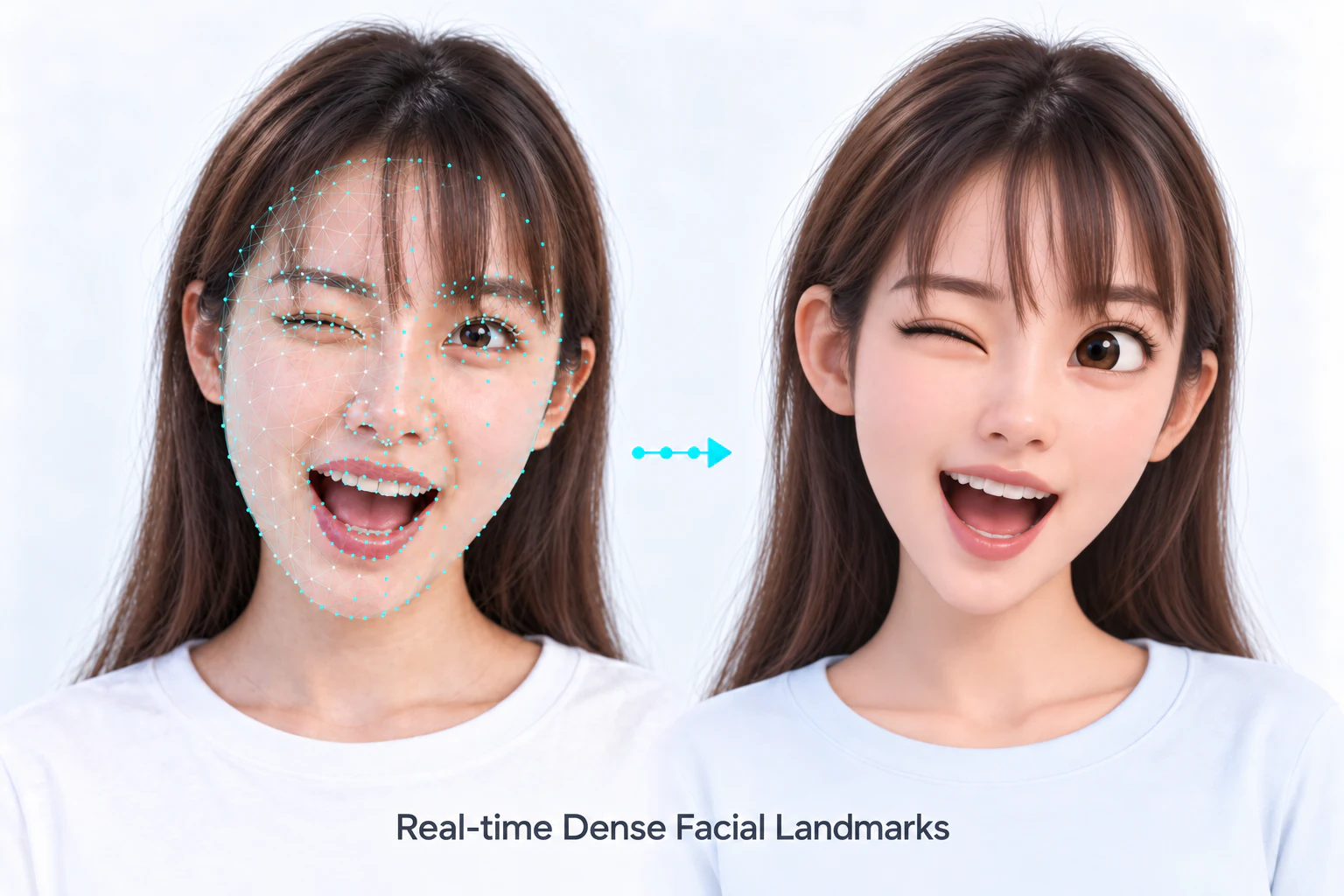
Query the dense point count instead of allocating a hard-coded buffer in C. Point order belongs to the selected landmark engine; keep it consistent when a downstream system expects specific indices. Smoothing can reduce visible jitter in video, but adds lag to fast motion. See landmarks and alignment.
Silent Liveness
RGB liveness produces a score from a face image without asking the user to perform an action. Enable HF_ENABLE_LIVENESS, run the pipeline on the detected faces, then read the RGB liveness scores.
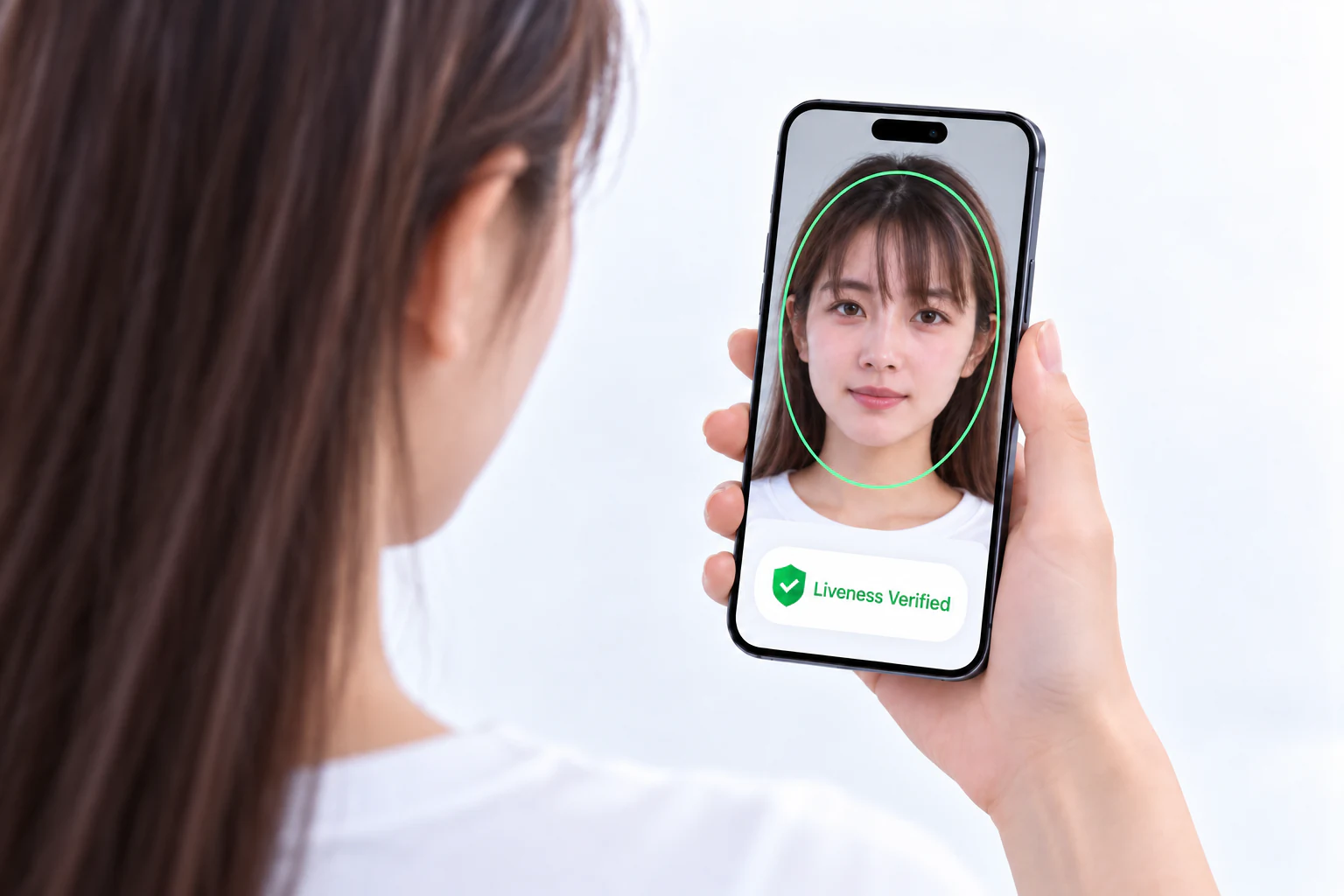
Choose a liveness threshold using the target camera’s live captures, printed-photo presentations and screen replays. Include the expected lighting, face sizes and exposure conditions in that evaluation.
The liveness guide explains the SDK flow and how it differs from action detection.
Head Pose Estimation
Enable HF_ENABLE_FACE_POSE to obtain roll, yaw and pitch along with detection results. Use these angles for camera guidance, frontal-face filtering or an orientation overlay.
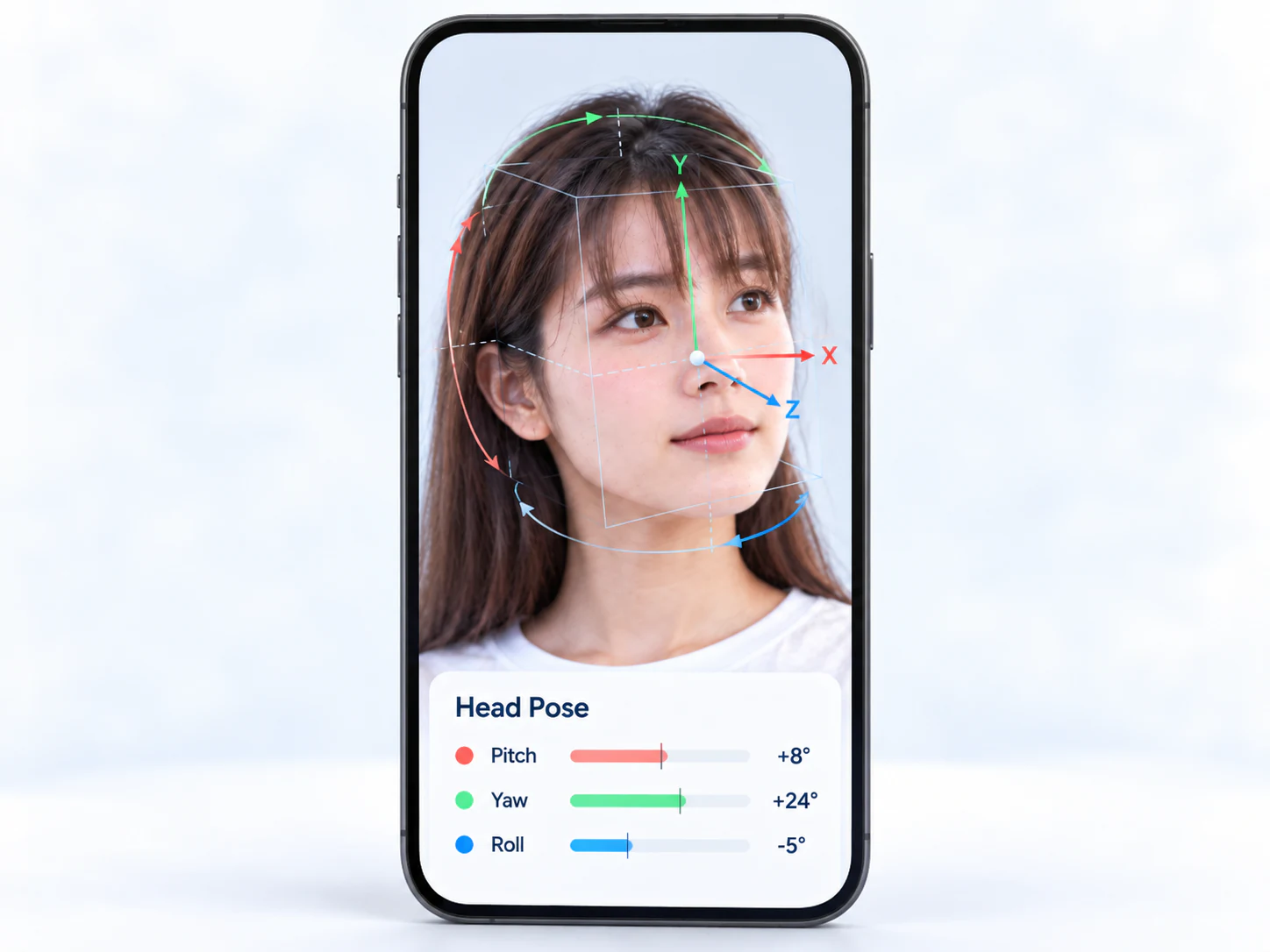
When drawing on a mirrored front-camera preview, transform the overlay consistently with the preview. Rotation and mirroring are different operations; see image inputs and coordinates.
Cooperative Liveness
The interaction module returns eye-state scores and temporal action flags, including blink, jaw opening, head shake and head raise. A guided flow can use these outputs to advance a challenge.
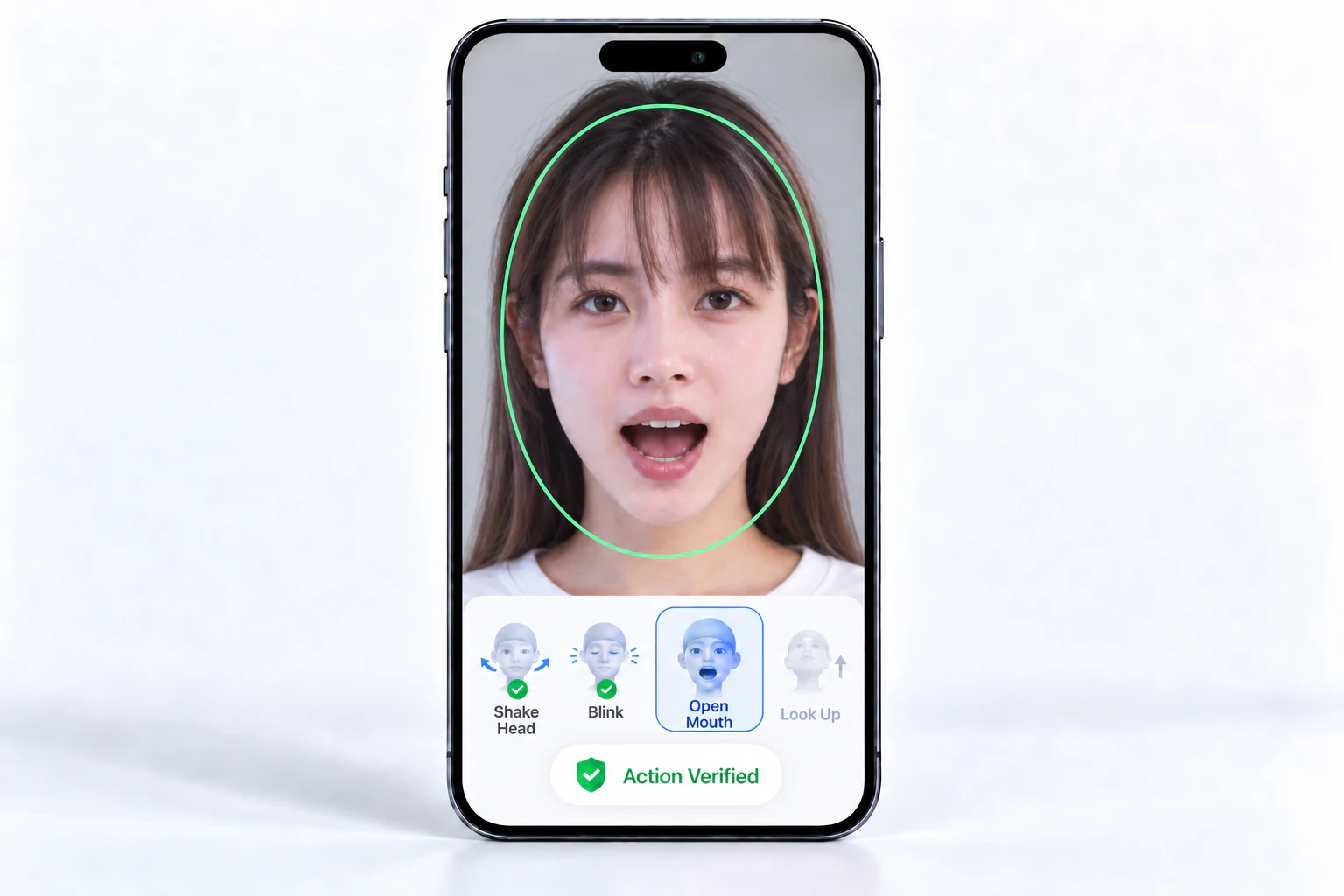
Use a tracking session and consecutive frames. The application manages prompts, timeouts and retries, and records action completion separately from the anti-spoofing result. See the liveness guide for the complete interaction flow.
Embedding Management
FeatureHub stores embeddings with numeric IDs. It supports insertion, update, removal, thresholded search and top-k search, with optional persistence. Keep names and other application records in your own storage and connect them using the returned ID.
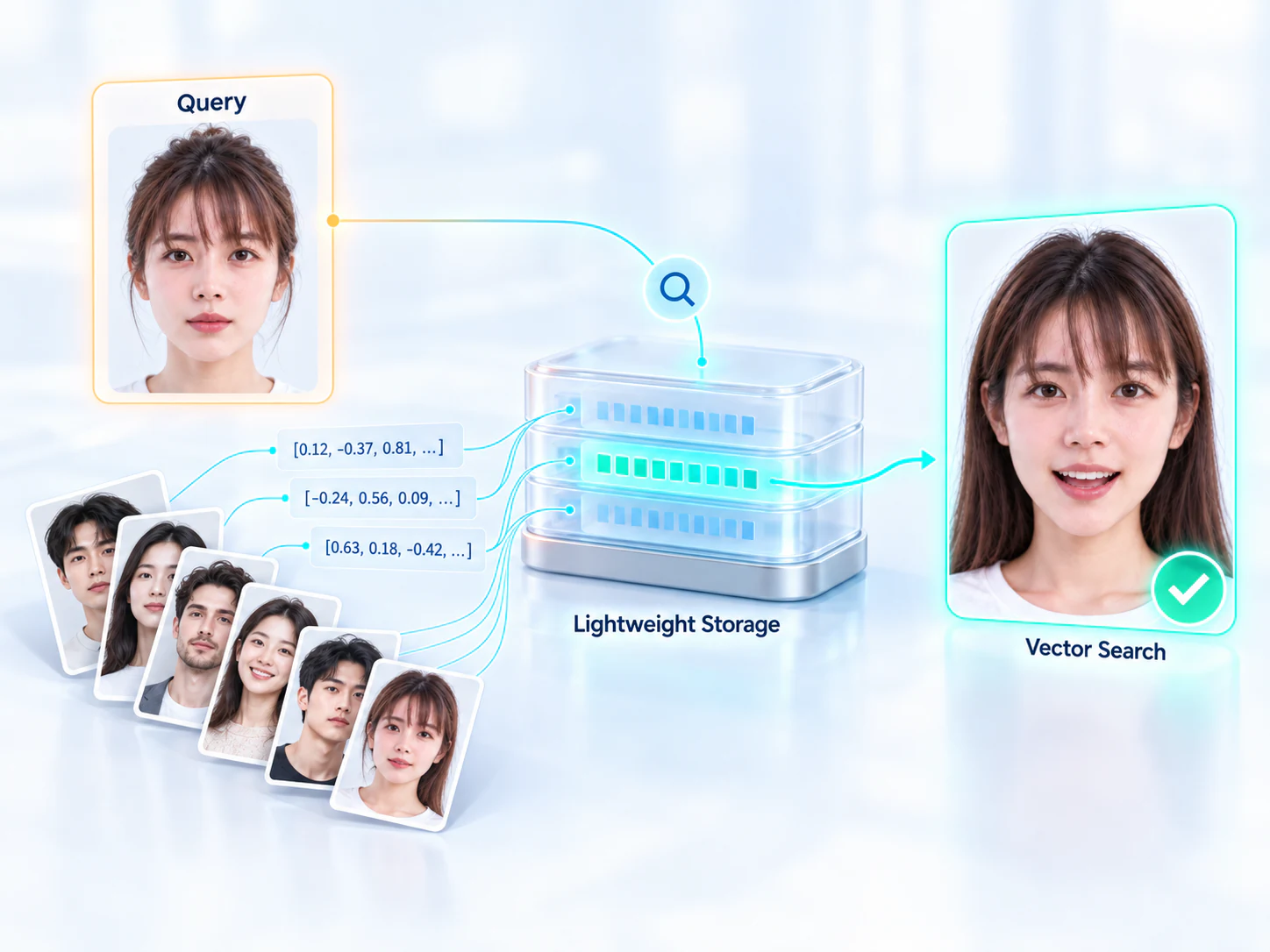
FeatureHub is shared by the process. Initialize it once for a gallery, then close it after the workers using it have stopped. Choose exhaustive search when you need the best match; eager search can stop at the first result that passes the threshold. See the gallery example.
Hardware Support
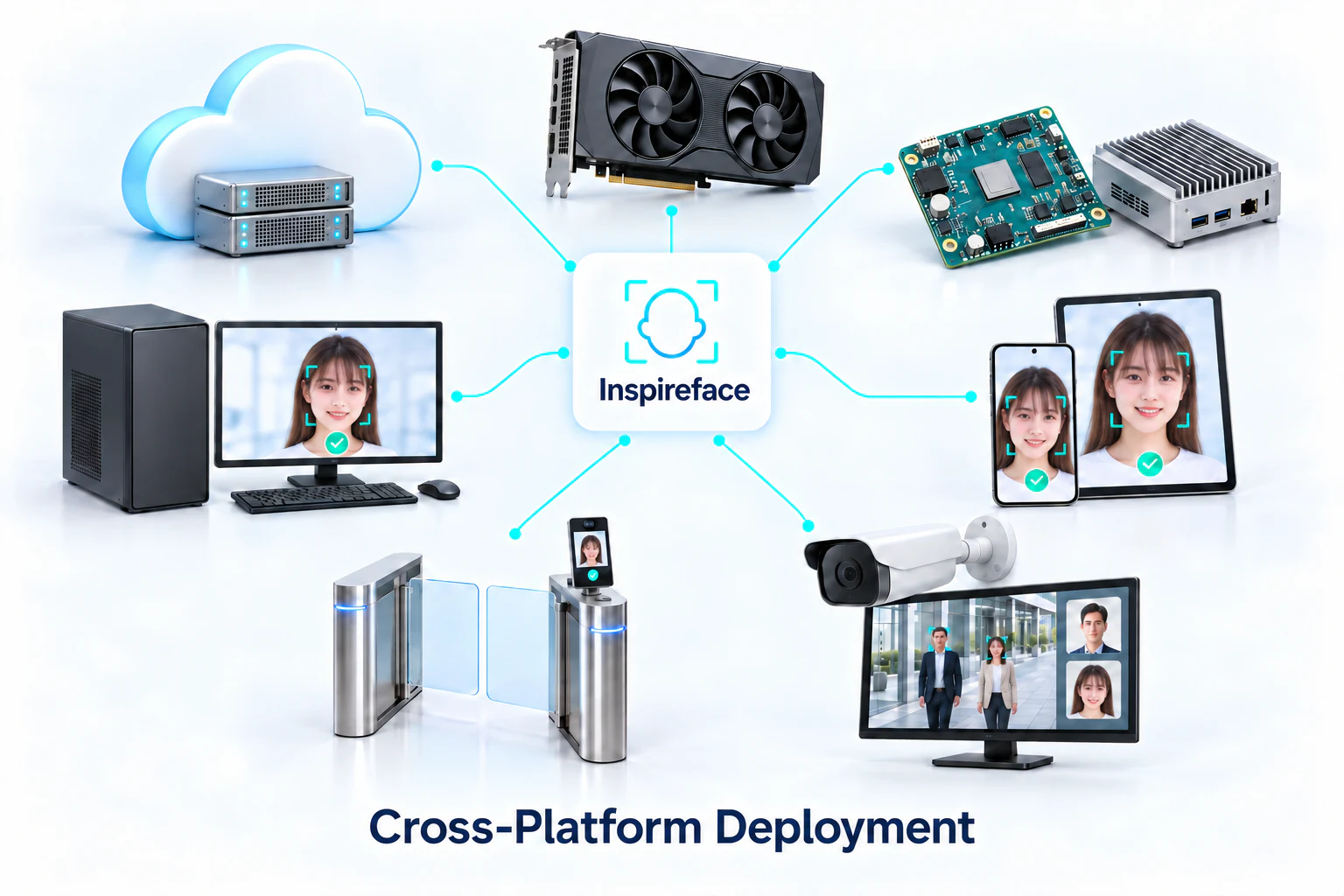
Choose a backend supported by the target hardware and pair it with the appropriate model pack. Supported models use that backend; image handling, tracking logic and gallery search can also use the CPU.
| Target | SDK and pack choice | Setup |
|---|---|---|
| Desktop, mobile or embedded CPU | CPU build with a compatible general pack such as Pikachu | x86 CPU · ARM · Models and builds |
| Windows x64 CPU | C/C++ SDK or the PyPI package, with a general CPU pack | Windows · Build |
| iOS / macOS CPU | Objective-C and Swift frameworks with a general CPU resource pack | Apple APIs · iOS · macOS |
| Apple CoreML | Apple-extension build and compatible Apple model resources | iOS / Apple |
| Rockchip NPU | RKNN build, matching SoC pack and board runtime | Rockchip |
| NVIDIA GPU | TensorRT build, compatible TensorRT/CUDA runtime and TRT pack | CUDA / TensorRT |
Optional liveness demos
InspireFacePlus adds two guided mobile verification flows: passive RGB capture and screen-light capture. In the Android example, the device handles face positioning and capture, then sends the completed round to the service for a liveness result. Both entries appear under Anti-fraud with a PLUS badge.
Integrate PLUS through its capture and service protocol. Use HF_ENABLE_LIVENESS for local RGB scoring, and run recognition or gallery matching as the identity step when needed.
Passive Liveness (PLUS)
Passive liveness uses a short RGB sequence while the user looks at the front camera. There are no blink, head-turn or screen-flash prompts. This interaction suits a guided selfie step in enrollment or account verification when the user should only need to position the phone and hold still.
The Android demo waits for one steady face inside the guide before enabling Start verification. It collects 20 consecutive valid frames, using local face detection and eye landmarks to prepare the inputs. If a short blur or movement breaks continuity, the contiguous segment starts again; face loss, multiple faces or a larger movement stops the round and asks for a new capture.
The completed sequence is submitted once. The service returns a verdict and score, or asks for another capture if it cannot reach a conclusion. The result covers the completed sequence. The local Silent liveness page provides a continuously refreshed single-frame score for comparison. See the passive capture workflow.
Flash Liveness (PLUS)
Flash liveness coordinates front-camera capture with changes in the phone display. The user keeps still while the screen provides white, red, green and blue illumination. The service evaluates the captured light sequence; the application does not ask the user to imitate a facial action.
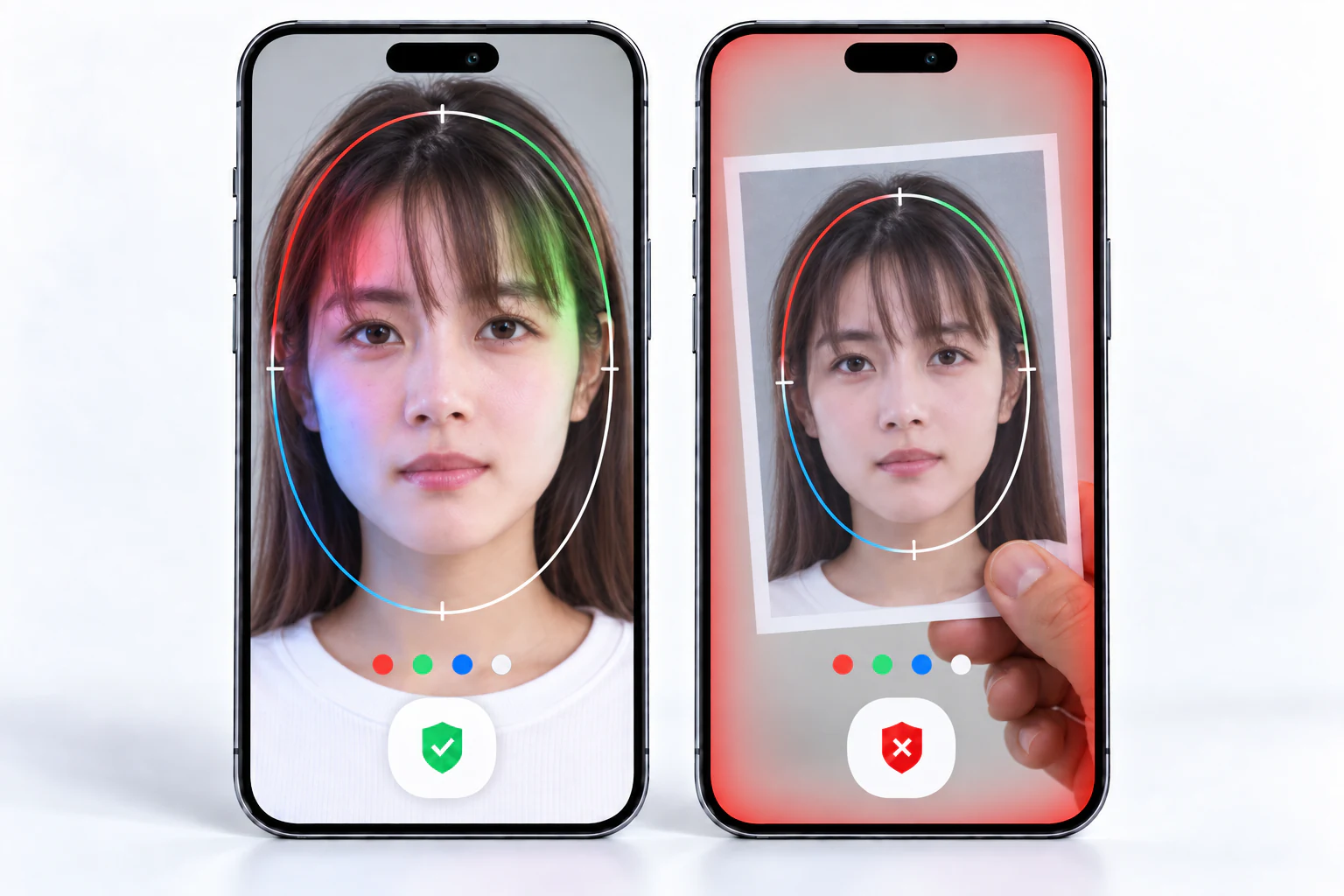
The demo first lets exposure and white balance settle under white light, locks both settings, and captures each illumination phase after it has settled. The phone screen supplies the illumination. The front camera must provide the exposure, white-balance and timestamp controls needed to keep the images aligned with the displayed colors; unsupported devices show a capability message before capture.
This flow fits a verification step where the application can control the display and camera together and the user can remain still through the light sequence. It needs more device coordination than passive capture, so test the actual target phones as part of integration. See the flash capture workflow for the sequence, interruption handling and result states.
Both demo flows need a network connection. Try the Android app to compare the interactions. For commercial access, contact contact@insightface.ai with the target platform and intended use.