
Image processing with InspireCV
InspireCV is a C++ library for image operations and model-input preprocessing. It can be used independently of InspireFace. Its default build uses OKCV; OpenCV is optional.
Use Image for file I/O, cropping, resizing, drawing and simple filters. Use task::Pipeline when you need explicit pixel formats, transforms, normalization or tensor layouts. The examples below use the standalone InspireCV source tree.
For CPU/OpenCV comparisons, CUDA preprocessing and image chains in GPU memory, see image processing benchmarks, including run commands and raw CSV reports.
For CPU deployment and acceleration options, see x86 CPU and ARM.
The Windows C/C++ SDK already includes the matching image-processing headers and implementation. Link InspireFace::InspireFace when using these APIs inside an InspireFace application; a separate InspireCV installation is only needed for standalone use.
The four-channel SwapRB() and expanded x86 acceleration described below are included in InspireCV revision 45d58606, which is also selected by InspireFace's current third-party source. When updating an installed SDK, keep its headers and libraries together; available acceleration paths depend on the target CPU and build options.
Build and link
The default CPU build needs CMake 3.15 or newer and a C++14 compiler:
git clone --recurse-submodules https://github.com/tunmx/InspireCV.git
cmake -S InspireCV -B build/inspirecv \
  -DCMAKE_BUILD_TYPE=Release \
  -DINSPIRECV_BUILD_EXAMPLES=ON \
  -DCMAKE_INSTALL_PREFIX="$PWD/local/inspirecv"
cmake --build build/inspirecv --parallel 4
cmake --install build/inspirecv
For an installed library, link the exported CMake target:
cmake_minimum_required(VERSION 3.15)
project(image_app LANGUAGES CXX)
find_package(InspireCV CONFIG REQUIRED)
add_executable(image_app main.cpp)
target_compile_features(image_app PRIVATE cxx_std_14)
target_link_libraries(image_app PRIVATE InspireCV::inspirecv)
Configure your application with -DCMAKE_PREFIX_PATH=/path/to/local/inspirecv. If you embed the source instead, use add_subdirectory(InspireCV) and link the same InspireCV::inspirecv target. The target supplies the include directories and dependencies.
| Build option | Default | Purpose |
|---|---|---|
INSPIRECV_BUILD_EXAMPLES | OFF | Build the small programs in example/. |
INSPIRECV_BUILD_TESTS | OFF | Build library tests. |
INSPIRECV_BACKEND_OPENCV | OFF | Use the OpenCV-backed Image implementation. |
INSPIRECV_TASK_ENABLE_ARM_NEON | ON | Enable supported ARM NEON preprocessing paths. |
INSPIRECV_ENABLE_AVX2 | OFF | Compile all x86 C++ sources with AVX2; requires compatible target CPUs. |
INSPIRECV_ENABLE_CUDA | OFF | Build optional CUDA preprocessing; needs CMake 3.18 or newer. |
On x86, INSPIRECV_ENABLE_AVX2=OFF still allows the library to select separately compiled AVX2 kernels when both the CPU and OS support them. Keep this default when distributing a build across different machines; ON compiles the whole library for compatible targets. The latest source extends these automatic paths across supported image transforms, color conversions and Task tensor output. Existing API calls stay the same.
Check the project CMake options when changing backends. OpenCV I/O/GUI integration for the default backend is configured separately from replacing the Image backend itself.
Read, transform and write an image
#include <inspirecv/inspirecv.h>
#include <iostream>

int main(int argc, char** argv) {
    if (argc != 2) return 1;
    auto image = inspirecv::Image::Create(argv[1], 3);
    if (image.Empty()) {
        std::cerr << "Cannot read image\n";
        return 2;
    }
    auto resized = image.Resize(640, 480);
    auto gray = resized.ToGray();
    auto blurred = gray.GaussianBlur(5, 1.2);
    if (!blurred.Write("processed.png")) return 3;
    return 0;
}
Three-channel file input uses BGR storage. Resize returns a new image and uses bilinear sampling by default. This example stretches to a fixed size; preserve the aspect ratio or letterbox explicitly when your application needs that behavior.
Image is movable but not copyable. Use Clone() when you need a separate pixel buffer. For external storage, Image::Create(width, height, channels, data, false) borrows the pixels: the caller must keep them alive and avoid concurrent writes. The default copy_data=true makes a copy.
Image drawing and padding color arguments use RGB order; three-channel file pixels use BGR.
The same input makes the individual operations easy to compare. These images show separate operations; their dimensions and settings can differ from the combined example above. Click a card to inspect its original size.

The same input for each comparison.

Remove color; retain brightness structure.

Soften local detail with a blur filter.
Crop, pad and draw
Image operations can also prepare a preview or a region for another processing step. This helper crops the center of a valid image, adds a border and saves a separate output. It leaves the input unchanged.
#include <inspirecv/inspirecv.h>

bool save_preview(const inspirecv::Image& image) {
    if (image.Empty() || image.Width() < 2 || image.Height() < 2) return false;
    auto roi = inspirecv::Rect2i::Create(
        image.Width() / 4, image.Height() / 4,
        image.Width() / 2, image.Height() / 2);
    auto crop = image.Crop(roi);
    auto preview = crop.Pad(16, 16, 16, 16, {32.0, 32.0, 32.0});
    auto border = inspirecv::Rect2i::Create(16, 16, crop.Width(), crop.Height());
    preview.DrawRect(border, {255.0, 128.0, 0.0}, 2);
    return preview.Write("preview.jpg");
}
For an actual detection rectangle, clamp the region to the input dimensions before cropping. Padding shifts coordinates: the cropped image origin becomes (left padding, top padding) in the padded output. Apply that offset when drawing landmarks.
| Operation | API | Notes |
|---|---|---|
| Geometry | Resize, Crop, Pad, WarpAffine | Returns a new image; WarpAffine requires an explicit transform. |
| Orientation | Rotate90, Rotate180, Rotate270, FlipHorizontal, FlipVertical | Image rotations are clockwise. |
| Color | SwapRB, ToGray | Preserve the resulting channel-order information in your application. |
| Filters | GaussianBlur, Threshold, Erode, Dilate | Erode and dilate require single-channel images; Threshold supports binary thresholding. |
| Comparison and blending | AbsDiff, MeanChannels, Blend | Match dimensions; Blend uses an 8-bit mask as the weight of the first image. |
| Drawing | DrawLine, DrawRect, DrawCircle, Fill | Mutates the destination image; drawing colors use RGB order. |
The Image examples cover geometry, filters, color and blending as small standalone programs.
Geometry side by side
Resizing changes sampling and output dimensions; cropping keeps part of the source; padding expands the canvas. Each changes coordinates differently. After rotation or mirroring, use the transformed coordinates for boxes and landmarks too.

325 × 325 → 113 × 113 pixels.

Rotate the image 90° clockwise.

Mirror left and right.

Reverse the top and bottom.

Keep a 171 × 171 region of the input.

Add 50 pixels on each side.
Draw on a copy
Use Clone() for the drawing destination when the original pixels are still needed for recognition or analysis. This keeps lines and filled regions out of later model input. The examples below show a rectangle, its vertices, connecting lines and a filled region; drawing modifies the destination image.

Draw a boundary on the image.

Mark the rectangle vertices.

Connect the vertices with colored lines.

Fill the selected region.
Channels and pixel values
SwapRB() changes channel order, Mul and Add change pixel values, and Reset replaces the entire buffer. Intermediate 8-bit calculations can saturate; use the float image type below when fractional or out-of-range values must be retained.
With the latest standalone source and the default OKCV backend, SwapRB() also exchanges RGBA and BGRA while keeping the alpha channel:
#include <inspirecv/inspirecv.h>
#include <cstdint>

const std::uint8_t rgba[] = {255, 64, 32, 128};
auto source = inspirecv::Image::Create(1, 1, 4, rgba);
auto bgra = source.SwapRB();
// bgra has four channels: {32, 64, 255, 128}.
This example uses OKCV. With the optional OpenCV backend, SwapRB() on a four-channel image returns three channels and drops alpha.

Red and blue channels exchanged.

Scale the stored pixel values.

8-bit values saturate at the lower bound.

Replace the pixels with a gray buffer.
Float images and model tensors
Image is an alias for ImageT<uint8_t>. Use ImageT<float> when intermediate pixel calculations need floating-point storage. Reading a file as float preserves the [0, 255] pixel range. Normalize the values with Mul or the Task mean/scale settings.
#include <inspirecv/inspirecv.h>

inspirecv::ImageT<float> load_unit_float(const std::string& path) {
    auto image = inspirecv::ImageT<float>::Create(path, 3);
    if (image.Empty()) return {};
    return image.Mul(1.0 / 255.0);
}
The result contains [0, 1] values in interleaved HWC storage and BGR order. Use the Task pipeline below for RGB, per-channel mean/scale or CHW storage. ImageT<float>::Write rounds and saturates pixels to an 8-bit image file. To retain float values, save the buffer in a tensor format used by your application.
Task preprocessing
A Task pipeline combines a destination-to-source transform, sampling, color conversion and output layout. It writes either an owned Image or a caller-provided tensor buffer.
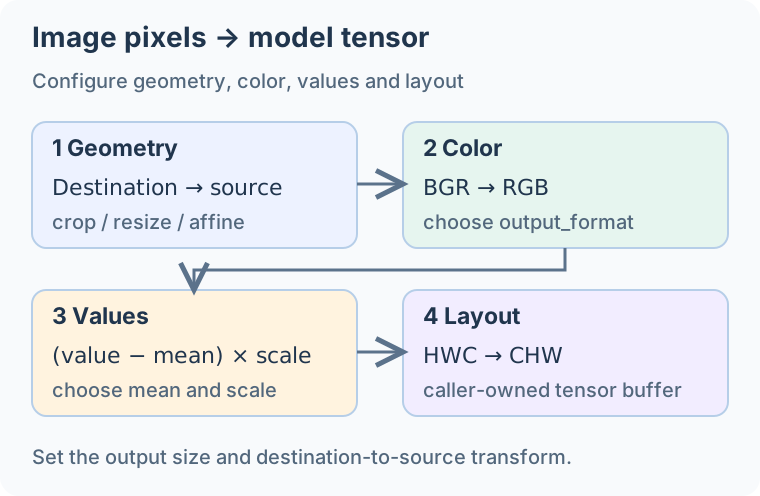
For example, convert a resized BGR image into normalized RGB float data in CHW order:
#include <inspirecv/task/pipeline.h>
#include <vector>

// image is a valid three-channel BGR Image.
auto resized = image.Resize(224, 224);
namespace task = inspirecv::task;
task::PipelineOptions options;
options.input_format = task::PixelFormat::kBgr;
options.output_format = task::PixelFormat::kRgb;
options.mean = {{127.5f, 127.5f, 127.5f, 0.0f}};
options.scale = {{1.0f / 127.5f, 1.0f / 127.5f, 1.0f / 127.5f, 1.0f}};
task::Pipeline pipeline(options);

std::vector<float> values(3 * 224 * 224);
task::TensorBuffer tensor;
tensor.data = values.data();
tensor.width = 224;
tensor.height = 224;
tensor.channels = 3;
tensor.element_type = task::ElementType::kFloat32;
tensor.order = task::TensorOrder::kChw;
auto status = pipeline.Run(resized, tensor);
// Only consume values if status == task::Status::kOk.
Float normalization applies (value - mean[channel]) * scale[channel] after conversion to the configured output channel order. Here the values are mapped from [0, 255] to [-1, 1]. Set mean and scale according to the model's input requirements.
The caller allocates and owns the storage described by TensorBuffer. Size values for the dimensions, element type and strides. Zero strides select tightly packed defaults. Select HWC, CHW or channel-packed-four to match the model's memory layout.
For Float32 output, use storage aligned for float, such as std::vector<float>, and byte strides that are multiples of sizeof(float). No additional SIMD alignment is required.
Save the code below as preprocess.cpp and CMakeLists.txt in the same folder, then build with your installed InspireCV package. The program also writes resized.jpg so you can inspect the spatial preprocessing.
preprocess.cpp — complete code
#include <inspirecv/inspirecv.h>
#include <inspirecv/task/pipeline.h>
#include <algorithm>
#include <iostream>
#include <vector>

int main(int argc, char** argv) {
    if (argc != 2) {
        std::cerr << "Usage: preprocess IMAGE\n";
        return 1;
    }
    auto image = inspirecv::Image::Create(argv[1], 3);
    if (image.Empty()) {
        std::cerr << "Cannot read image\n";
        return 2;
    }
    // This example stretches to a square; use the transform your model expects.
    auto resized = image.Resize(224, 224);
    if (!resized.Write("resized.jpg")) {
        std::cerr << "Cannot write resized.jpg\n";
        return 3;
    }
    namespace task = inspirecv::task;
    task::PipelineOptions options;
    options.input_format = task::PixelFormat::kBgr;
    options.output_format = task::PixelFormat::kRgb;
    options.mean = {{127.5f, 127.5f, 127.5f, 0.0f}};
    options.scale = {{1.0f / 127.5f, 1.0f / 127.5f, 1.0f / 127.5f, 1.0f}};
    task::Pipeline pipeline(options);
    if (pipeline.ConfigurationStatus() != task::Status::kOk) return 4;

    std::vector<float> values(3 * 224 * 224);
    task::TensorBuffer tensor;
    tensor.data = values.data();
    tensor.width = 224;
    tensor.height = 224;
    tensor.channels = 3;
    tensor.element_type = task::ElementType::kFloat32;
    tensor.order = task::TensorOrder::kChw;
    const auto status = pipeline.Run(resized, tensor);
    if (status != task::Status::kOk) {
        std::cerr << task::StatusMessage(status) << '\n';
        return 5;
    }
    const auto range = std::minmax_element(values.begin(), values.end());
    std::cout << "RGB float tensor: 3 x 224 x 224, range ["
              << *range.first << ", " << *range.second << "]\n";
    return 0;
}
CMakeLists.txt — complete code
cmake_minimum_required(VERSION 3.15)
project(inspirecv_docs_example LANGUAGES CXX)
find_package(InspireCV CONFIG REQUIRED)
add_executable(preprocess preprocess.cpp)
target_compile_features(preprocess PRIVATE cxx_std_14)
target_link_libraries(preprocess PRIVATE InspireCV::inspirecv)
cmake -S . -B build -DCMAKE_BUILD_TYPE=Release \
  -DCMAKE_PREFIX_PATH=/path/to/local/inspirecv
cmake --build build --parallel 4
./build/preprocess face.jpg
Check pipeline status
Check ConfigurationStatus() when creating a pipeline, then check the status returned by SetTransform and each Run call. Handle configuration, transform and input errors at the corresponding call.
#include <inspirecv/task/pipeline.h>
#include <iostream>

inspirecv::task::Status convert_checked(
        const inspirecv::Image& source, inspirecv::Image* output) {
    namespace task = inspirecv::task;
    task::PipelineOptions options;
    options.input_format = task::PixelFormat::kBgr;
    options.output_format = task::PixelFormat::kRgb;
    options.backend_preference = task::BackendPreference::kCpu;
    task::Pipeline pipeline(options);
    auto status = pipeline.ConfigurationStatus();
    if (status == task::Status::kOk) {
        status = pipeline.Run(source, source.Width(), source.Height(), output);
    }
    if (status != task::Status::kOk) {
        std::cerr << task::StatusMessage(status) << '\n';
    }
    return status;
}
This example explicitly selects CPU processing and keeps the source dimensions. kDefault inherits the process preference; kAuto and kCuda participate in the host-side CUDA dispatch when acceleration is enabled. Unsupported CUDA requests may still run on CPU, so use LastExecutionBackend() after a successful call when recording measurements.
The output above contains RGB pixels. Store the channel-order information alongside the Image, and use SwapRB() before passing it to an operation that expects BGR file pixels.
Transforms are explicit
Set both the output dimensions and the sampling transform. Pipeline::SetTransform maps each destination coordinate back to a source coordinate. For an align-corners resize where all dimensions are greater than one:
auto transform = inspirecv::TransformMatrix::Create(
    float(source.Width() - 1) / float(output_width - 1), 0.0f, 0.0f,
    0.0f, float(source.Height() - 1) / float(output_height - 1), 0.0f
);
auto status = pipeline.SetTransform(transform);
// Check status before pipeline.Run(source, output_width, output_height, &output).
This transform uses align-corners sampling. For face alignment, supply a destination-to-source alignment transform. Check the return status of SetTransform; a non-invertible matrix leaves the previous transform in place.
Supported sampling modes are nearest and linear.
This example maps the face region of a rotated image into a 112 × 112 output. The affine transform selects and resamples that region.
Start with the rotated sample image.

Resample a 112 × 112 aligned region.
Camera buffers and repeated frames
RawImageView describes non-owning input memory with width, height and a row stride. For example, a tightly packed NV21 buffer can be decoded directly to BGR:
task::PipelineOptions options;
options.input_format = task::PixelFormat::kNv21;
options.output_format = task::PixelFormat::kBgr;
task::Pipeline pipeline(options);
task::RawImageView source;
source.data = nv21_bytes;
source.width = width;
source.height = height;
source.row_stride_bytes = 0;
inspirecv::Image bgr;
auto status = pipeline.Run(source, width, height, &bgr);
Provide a buffer large enough for the declared format and use even dimensions for NV21. Repack Android plane-based input using its actual strides. Keep the camera buffer alive through the call. For JPEG files, decode the image before creating a raw view.
For I420 input, store Y, U and V consecutively. With padded rows, width, height and the Y row stride must be even; each U/V row uses half the Y stride. RawImageView has one stride field, so repack camera planes whose strides do not follow this layout. For tightly packed I420, leave row_stride_bytes at zero.
| Output method | Memory behavior |
|---|---|
Run(..., width, height, Image*) | Creates owned output; leaves the destination unchanged on failure. |
RunInto(..., Image*) | Reuses the destination's existing buffer and dimensions; a failure may partially modify it. |
Run(..., TensorBuffer) | Writes into memory owned and sized by the caller. |
Reuse a pipeline for frames with the same configuration. RunInto avoids replacing the output image buffer; internal scratch memory may still be allocated when first needed. Use separate source and destination buffers. Use separate pipeline instances for concurrent workers because a pipeline reuses mutable execution state.
Optional CUDA processing
Build with INSPIRECV_ENABLE_CUDA=ON, then enable acceleration at runtime:
bool enabled = inspirecv::task::SetCudaEnabled(true);
// false means this build or machine cannot enable CUDA.
For host-input pipelines, unsupported CUDA requests can fall back to CPU. Inspect pipeline.LastExecutionBackend() after a successful run when measuring performance. Include host/device transfers in an end-to-end comparison.
Keep images on the GPU
The host-input API is convenient when pixels arrive in normal CPU memory. When several GPU operations run in sequence, the separate device API can avoid downloading and uploading between each operation.
| API | Data and execution contract |
|---|---|
inspirecv::cuda::DeviceImage | Owns device pixels. Upload and Download are synchronization boundaries; Resize, WarpAffine and rotations enqueue work on the supplied stream. |
task::cuda::Pipeline::Run | Converts device input into caller-owned device tensor memory. Accepts a DeviceImageView or an owning three-channel uint8 DeviceImage. |
task::cuda::Pipeline::RunBatch | Accepts arrays of input/output descriptors and a count; validates every descriptor before launching the first kernel and enqueues the batch on one stream. |
inspirecv::cuda::Synchronize | Waits for the selected stream when the application needs the queued results. |
Device pipelines are asynchronous. Allocate device memory for the input and the full output tensor, including its dimensions and strides. Keep those buffers alive until their stream has finished. RunBatch enqueues all items on the supplied stream; same-shaped items reuse cached geometry.
Use a CUDA-enabled build and enable acceleration explicitly. Device pipelines run on CUDA; check their returned status for device availability and operation support. Configure CPU/CUDA preferences separately for host-input pipelines.
See the exact interfaces in DeviceImage and CUDA Task Pipeline. For automatic acceleration of supported Image operations, acceleration.h provides SetCudaAccelerationEnabled, SetAccelerationPreference and GetLastImageExecutionBackend. Measure the actual backend and transfer cost on the target device.
Relationship to InspireFace
InspireFace uses InspireCV internally and provides inspirecv::FrameProcess through the InspireFace SDK. Include the SDK headers to use it, and select its own format and rotation enums.
Current InspireFace source enables the Task preprocessing path by default with ISF_ENABLE_INSPIRECV_TASK_PREPROCESS=ON.
The FrameProcess example below shows the raw frame, an upright processing preview and an affine region output.
A sideways frame with a rotation flag.

Rotate and reduce the preview to 160 × 160.

Read the target region through an affine transform.