
Sessions and tracking
A session holds enabled models, working memory and the tracking history for a video sequence. Create one for each worker or camera sequence and reuse it across frames to avoid repeated setup.
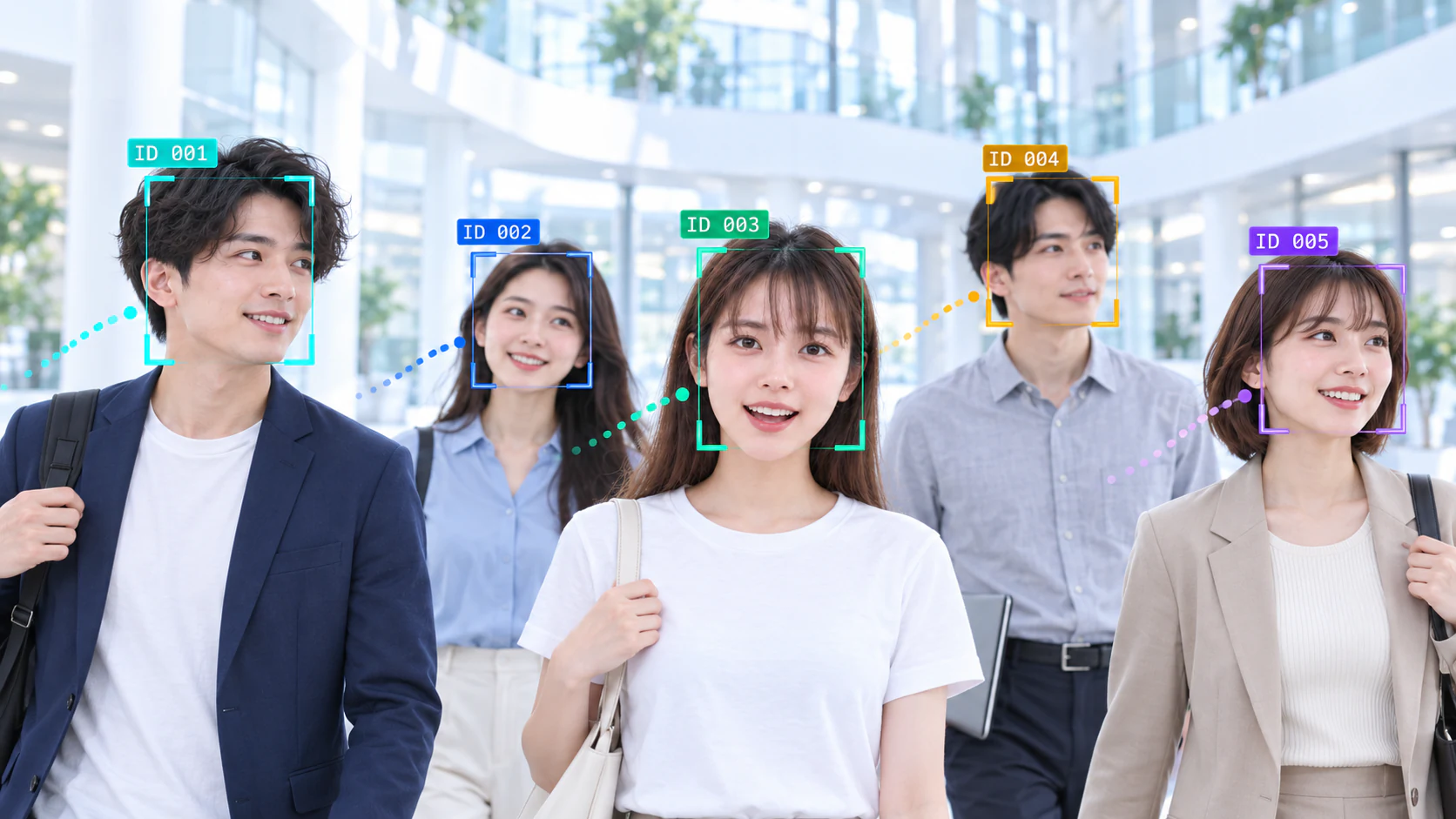
Pick a mode for the input
| Mode | Speed / latency | Use it for | How it works |
|---|---|---|---|
ALWAYS_DETECT | ★★☆☆☆ Higher latency | Still images, independent requests | Run detection on every call; no persistent track ID. |
LIGHT_TRACK | ★★★★★ Low latency | Live cameras, continuous video | Reuse previous-frame results and run detection when needed. |
TRACK_BY_DETECTION | ★★☆☆☆ Higher latency | Video that needs detection on every frame and track association | Detect on every frame, then associate detections across frames. |
Mode names in this table omit the C API prefix HF_DETECT_MODE_. More stars mean faster processing and lower per-frame latency in typical use. These are relative ratings; actual timings depend on the device, model, detector size, face count and enabled analysis features.
How the modes differ
ALWAYS_DETECTtreats each input independently. Use it for uploaded photos, batch image processing or unrelated requests. A face's position in the results does not identify it across images.LIGHT_TRACKuses the preceding frames to track faces with less work during stable tracking. Detection runs on the first frame, at the configured interval, or when no tracked faces remain. Frames that run detection usually take longer than tracking-only frames. With no faces to track, detection continues on each frame.TRACK_BY_DETECTIONruns the detector on every frame and associates its results into tracks. Use it when the application needs both per-frame detection and continuity across a video, such as monitoring or capture. It retains the detector's per-frame cost.
Track IDs connect observations within a sequence. They are not recognition results or permanent person IDs. Use an application ID or FeatureHub ID when the workflow needs a persistent identity.
Processing latency and new faces
For LIGHT_TRACK, increasing the detector interval reduces periodic detection work, but a new face entering the scene may take longer to appear in the results. Start with a shorter interval when timely capture matters, then adjust it using representative video. The interval does not reduce the detector frequency in ALWAYS_DETECT or TRACK_BY_DETECTION.
For a live camera, measure both SDK processing time and the age of the displayed frame. A queue of old frames can make the preview lag even when each SDK call is fast. Keep a short queue, drop stale frames when processing falls behind, and submit the remaining frames in order. See performance measurement for timing the processing stages.
A video loop
Choose your integration below. Each example reuses one session across frames. The native, Objective-C, Swift, HarmonyOS and Python examples use the 1.2.4 APIs; Android uses the Java 1.2.0 package. Use the matching Apple framework build for the Objective-C and Swift tabs.
After launching the SDK, create one session for the sequence. Call track_frame with each valid image stream; release each stream after its frame is processed, and release the session when the sequence ends.
#include <stdio.h>
#include <inspireface.h>

static HResult create_tracker(HFSession *session) {
    return HFCreateInspireFaceSessionOptional(
        HF_ENABLE_NONE, HF_DETECT_MODE_LIGHT_TRACK, 5, 320, -1, session);
}

static HResult track_frame(HFSession session, HFImageStream stream) {
    HFMultipleFaceData faces = {0};
    HResult status = HFExecuteFaceTrack(session, stream, &faces);
    if (status != HSUCCEED) return status;
    for (HInt32 i = 0; i < faces.detectedNum; ++i) {
        printf("track=%d observations=%d\n", faces.trackIds[i], faces.trackCounts[i]);
    }
    return HSUCCEED;
}
// At the end of the sequence: HFReleaseInspireFaceSession(session);
The C++ setup creates the runtime and FrameProcess. Keep the following session and call trackFrame(frame) once per ordered frame.
inspire::CustomPipelineParameter options;
auto session = inspire::Session::Create(
    inspire::DETECT_MODE_LIGHT_TRACK, 5, options, 320);
auto trackFrame = [&](inspirecv::FrameProcess& frame) {
    std::vector<inspire::FaceTrackWrap> faces;
    int status = session.FaceDetectAndTrack(frame, faces);
    if (status != 0) throw std::runtime_error("Tracking failed");
    for (const auto& face : faces) {
        std::cout << face.trackId << " " << face.trackCount << '\n';
    }
};
After Apple setup, create the tracker once. Call TrackFrame on a serial camera worker and check its BOOL result; failures populate the supplied NSError. The callback borrows the face arrays only for its duration. The caller keeps each stream and its pixels alive until processing completes.
#import <InspireFace/InspireFaceApple.h>

static IFSession *CreateTracker(NSError **error) {
    return [[IFSession alloc] initWithOptions:HF_ENABLE_NONE
        mode:HF_DETECT_MODE_LIGHT_TRACK maximumFaces:5 pixelLevel:320
        framesPerSecond:-1 error:error];
}

static BOOL TrackFrame(IFSession *session, IFImageStream *stream, NSError **error) {
    return [session withBorrowedFacesFromStream:stream
        body:^(HFMultipleFaceData faces) {
            for (HInt32 i = 0; i < faces.detectedNum; ++i) {
                NSLog(@"track=%d observations=%d", faces.trackIds[i], faces.trackCounts[i]);
            }
        } error:error];
}
// After the camera worker stops: [session closeWithError:&error];
Link both Apple frameworks and import InspireFaceSwift. Create the session once after runtime launch, then call trackFrame in frame order. SDK failures throw. Consume the borrowed view inside the closure; do not save its pointers or track/reset/close the session from that closure.
import InspireFaceSwift

func createTracker() throws -> FaceSession {
    try FaceSession(configuration: SessionConfiguration(
        detectionMode: .lightTracking, maximumFaces: 5, pixelLevel: 320))
}

func trackFrame(session: FaceSession, stream: ImageStream) throws {
    try session.withUnsafeFaces(in: stream) { faces in
        for i in 0..<faces.count {
            print("track=\(faces.trackIDs[i]) observations=\(faces.trackCounts[i])")
        }
    }
}
// After the camera worker stops: try session.close()
Create this session once after GlobalLaunch. Each invocation of trackFrame consumes a stream created from the current camera frame. See camera input for conversion and cleanup. Java types are from com.insightface.sdk.inspireface.base.
static Session createTracker() {
    Session session = InspireFace.CreateSession(
            InspireFace.CreateCustomParameter(),
            InspireFace.DETECT_MODE_LIGHT_TRACK, 5, 320, -1);
    if (session == null || session.handle == 0L) {
        throw new IllegalStateException("Cannot create tracker");
    }
    return session;
}

static void trackFrame(Session session, ImageStream stream) {
    MultipleFaceData faces = InspireFace.ExecuteFaceTrack(session, stream);
    if (faces == null) throw new IllegalStateException("Tracking failed");
    for (int i = 0; i < faces.detectedNum; i++) {
        System.out.println("track=" + faces.trackIds[i]);
    }
}
// After the camera worker stops: InspireFace.ReleaseSession(session);
Initialize the SDK with the HarmonyOS setup, then create one tracker for the camera sequence. Pass each frame's open ImageStream to trackFrame in order. The caller closes each stream after processing and calls session.close() when the sequence ends.
import { DetectMode, Feature, ImageStream, Session }
  from '@hyperinspire/inspireface';

function createTracker(): Session {
  return new Session({
    featureMask: Feature.NONE,
    detectMode: DetectMode.LIGHT_TRACK,
    maxFaces: 5,
    detectPixelLevel: 320
  });
}

function trackFrame(session: Session, stream: ImageStream): void {
  const result = session.track(stream);
  try {
    for (const face of result.faces) {
      console.info(`track=${face.trackId} observations=${face.trackCount}`);
    }
  } finally {
    session.releaseFaceResult(result);
  }
}
This complete loop reads input.mp4 and requires no camera permission or display.
import cv2
import inspireface as isf

video = cv2.VideoCapture("input.mp4")
if not video.isOpened():
    raise RuntimeError("Cannot open input.mp4")

try:
    isf.launch(resource_path="/path/to/Pikachu")
    with isf.InspireFaceSession(
        isf.HF_ENABLE_NONE,
        isf.HF_DETECT_MODE_LIGHT_TRACK,
        max_detect_num=5,
        detect_pixel_level=320,
        auto_launch=False,
    ) as session:
        while True:
            ok, frame = video.read()
            if not ok:
                break
            faces = session.face_detection(frame)
            for face in faces:
                print(face.track_id, face.track_count, face.location)
finally:
    video.release()
    isf.terminate()
Tune one setting at a time
| Setting | What it changes | Practical use |
|---|---|---|
| Detector pixel level | Model input size for detection | Larger supported levels can help small faces, but increase detection work. |
| Maximum faces | Session capacity | Keep it close to the number needed by the application. |
| Detection confidence threshold | Which detections are accepted | Inspect missed and false detections before changing it. |
| Minimum face pixel size | Filter for faces too small to use | Choose according to the actual input resolution and downstream task. |
| Track preview size | Preview/preprocessing size used in tracking | Different from the detector model level. |
| Detector interval | Detector cadence in tracking | Balance new-face recovery with per-frame work. |
| Landmark smoothing | Temporal stability of points | More smoothing can make overlays steadier but slower to respond. |
Supported detector levels come from the loaded pack. Use HFQuerySupportedPixelLevelsForFaceDetection in C, IFRuntime.getSupportedDetectionPixelLevels:error: in Objective-C or InspireFaceRuntime.getSupportedDetectionPixelLevels(_:) in Swift to read the available levels, then choose one for the session.
The equivalent settings in each interface:
Apply these setters to an existing session. The helper stops at the first failed setting.
static HResult tune_tracking(HFSession session) {
    HResult status = HFSessionSetFaceDetectThreshold(session, 0.5f);
    if (status != HSUCCEED) return status;
    status = HFSessionSetFilterMinimumFacePixelSize(session, 32);
    if (status != HSUCCEED) return status;
    status = HFSessionSetTrackPreviewSize(session, 320);
    if (status != HSUCCEED) return status;
    status = HFSessionSetTrackModeDetectInterval(session, 20);
    if (status != HSUCCEED) return status;
    status = HFSessionSetTrackModeSmoothRatio(session, 0.05f);
    if (status != HSUCCEED) return status;
    return HFSessionSetTrackModeNumSmoothCacheFrame(session, 5);
}
Use the floating-point smoothing overload in the current headers.
session.SetFaceDetectThreshold(0.5f);
session.SetFilterMinimumFacePixelSize(32);
session.SetTrackPreviewSize(320);
session.SetTrackModeDetectInterval(20);
session.SetTrackModeSmoothRatio(0.05f);
session.SetTrackModeNumSmoothCacheFrame(5);
Apply these setters to the existing IFSession on its processing queue. A failed call returns NO and stops the remaining settings.
#import <InspireFace/InspireFaceApple.h>

static BOOL TuneTracking(IFSession *session, NSError **error) {
    return [session setDetectionThreshold:0.5f error:error] &&
        [session setMinimumFacePixelSize:32 error:error] &&
        [session setTrackPreviewSize:320 error:error] &&
        [session setDetectionInterval:20 error:error] &&
        [session setTrackingSmoothRatio:0.05f error:error] &&
        [session setTrackingSmoothCacheFrames:5 error:error];
}
Use the existing FaceSession. Each setter throws on failure; configure it before the frame loop or between completed frames.
import InspireFaceSwift

func tuneTracking(session: FaceSession) throws {
    try session.setDetectionThreshold(0.5)
    try session.setMinimumFacePixelSize(32)
    try session.setTrackPreviewSize(320)
    try session.setDetectionInterval(20)
    try session.setTrackingSmoothRatio(0.05)
    try session.setTrackingSmoothCacheFrames(5)
}
The Java 1.2.0 wrapper exposes these setters. They return void.
InspireFace.SetFaceDetectThreshold(session, 0.5f);
InspireFace.SetFilterMinimumFacePixelSize(session, 32);
InspireFace.SetTrackPreviewSize(session, 320);
InspireFace.SetTrackModeDetectInterval(session, 20);
InspireFace.SetTrackModeSmoothRatio(session, 0.05f);
InspireFace.SetTrackModeNumSmoothCacheFrame(session, 5);
Apply configure to an existing Session. getSupportedPixelLevels() reads the detector levels from the loaded resource pack. Use session.clearTracking() when starting a different camera sequence.
import { InspireFace } from '@hyperinspire/inspireface';

console.info(`detector levels: ${InspireFace.getSupportedPixelLevels()}`);
session.configure({
  detectThreshold: 0.5,
  minimumFaceSize: 32,
  previewSize: 320,
  detectInterval: 20,
  smoothRatio: 0.05,
  smoothCacheFrames: 5
});
Use an existing InspireFaceSession.
session.set_detection_confidence_threshold(0.5)
session.set_filter_minimum_face_pixel_size(32)
session.set_track_preview_size(320)
session.set_track_model_detect_interval(20)
session.set_track_mode_smooth_ratio(0.05)
session.set_track_mode_num_smooth_cache_frame(5)
Adjust these example values using representative video from the target camera. The Python method set_track_model_detect_interval corresponds to HFSessionSetTrackModeDetectInterval in C.
Resetting a sequence
If a camera switches, a video seeks or the input orientation changes, reset the temporal history. The C API has HFSessionClearTrackingFace; C++ has Session::ClearTrackingFace; Objective-C has [session clearTrackingWithError:&error]; Swift has try session.clearTracking(); HarmonyOS has session.clearTracking(). With the Python high-level wrapper or Java 1.2.0 package, recreate the session to begin a fresh sequence.
Enable pose, quality, recognition and pipeline models according to the outputs the application uses. Profile detection, tracking and analysis separately before optimizing the complete loop.